Estimated reading time: 13 minutes
Table of contents
- Why MicroOS? My Shortlist
- 1. The Proxmox Prototype
- 2. Configuration & “Immutable” Challenges
- 3. Deploying Services with Podman Quadlets
- 4. Configuring Backrest: Speed, Retention & Notifications
- 5. Systemd Email Alerts: Knowing When Things Break
- 6. Migration to Bare Metal (The Real Disaster Recovery Test)
- 7. Maintenance Commands
- Final Thoughts
My main Proxmox node was starting to feel the squeeze. Memory was getting tight, and I was running an older VM dedicated to Docker and Portainer that felt like it could be optimized. I wasn’t looking to ditch Proxmox – it’s still the heart of my lab – but I needed to offload some services that are natively built for containers (like Nginx Proxy Manager) to a more dedicated, efficient environment, which led me to explore an OpenSUSE MicroOS setup.
I had a Lenovo ThinkCentre M92p Tiny collecting dust (this was my previous Proxmox node and was a retro console for a brief moment), which seemed like the perfect candidate for a bare-metal container host to relieve the pressure on my main node. But before committing to hardware, I wanted to test a new operating system approach for this OpenSUSE MicroOS setup.
We’ve seen a shift in the industry recently. Giants like Amazon Prime Video reduced costs by ditching microservices for a monolithic architecture. It got me thinking about my own stack. While Docker Compose is used heavily in development and is great for spinning things up quickly, for a “production” homelab environment, I wanted something that felt more integrated with the system – something stable, low-maintenance, and robust.
I looked at options like Fedora CoreOS, but I kept hearing good things about OpenSUSE MicroOS. It’s a rolling release based on Tumbleweed, featuring atomic updates and an immutable filesystem. It seemed to strike the perfect balance between cutting-edge features and appliance-like stability.
This post logs my journey: starting with a proof-of-concept OpenSUSE MicroOS setup on a Proxmox VM to replace my old Docker setup, configuring the immutable OS, setting up Backrest for backups, and finally migrating everything to bare metal to free up those precious RAM resources on my Proxmox node. While I was at it, I also treated this migration as a fire drill to test my disaster recovery strategy – and it’s a good thing I did!
Why MicroOS? My Shortlist
Before diving into the “how,” here is the “why.” I considered alternatives like Fedora CoreOS, but for this OpenSUSE MicroOS setup, the OS ticked specific boxes for the low-maintenance server appliance I wanted to build:
- Immutable Filesystem: The root filesystem is read-only. This makes it incredibly hard to break the OS by accidentally deleting or modifying system files.
- Atomic Updates: Updates are applied in a new snapshot in the background. They either succeed fully or not at all. If an update breaks something, you just reboot into the previous snapshot.
- Container-First: It is designed specifically to run containers (Podman) as its primary workload.
- Systemd Integration: Unlike standard Docker, MicroOS encourages using Podman Quadlets. This treats containers as first-class systemd services, handling dependencies and auto-starts natively.
- Structured Backup & Recovery: Because the OS is immutable and ephemeral, and all persistent data is strictly separated into
/var, disaster recovery is highly structured. While not quite a “one-click” restore (as you’ll see later with SELinux), re-installing the base OS and restoring the/varvolume gets you 90% of the way there very quickly. - Low Maintenance: It fits the “set it and forget it” philosophy perfectly. My containers update themselves automatically via Podman, and the stable, transactional nature of the OS means I spend less time fixing broken packages and more time actually using the services.

1. The Proxmox Prototype
Before committing to the bare metal hardware, I spun up a VM on my Proxmox cluster to validate the OpenSUSE MicroOS setup and ensure I could replicate my existing services.
VM Creation
I used the “Self Installing Container Host” ISO. For the VM specs, I went with:
- Memory: 4GB RAM
- Disk: 32GB (Local storage)
- Network: VirtIO bridge
qm create 115 \
  --name microos \
  --memory 4096 \
  --net0 virtio,bridge=vmbr0 \
  --scsihw virtio-scsi-pci \
  --scsi0 local:32 \
  --cdrom local:iso/openSUSE-MicroOS.x86_64-ContainerHost-SelfInstall.iso \
  --boot "order=scsi0;ide2" \
  --ostype l26 \
  --serial0 socket
Installation & First Boot
The OpenSUSE MicroOS setup and installation via the Proxmox console was straightforward but required a few manual steps:
- Selected “Install” from the boot menu (it defaults to booting from the hard drive).
- Confirmed the disk wipe (“Destroy all data on /dev/sda”).
- After the automatic reboot, I went through the initial configuration wizard to set the timezone, root password, and create my standard user,
myuser.
Initial Hardening
Once I could log in, I immediately set up SSH access and sudo privileges so I could work from my terminal. I also disabled root login via SSH for security.
# Logged in as root
passwd myuser
# Add sudo privileges
echo 'myuser ALL=(ALL) ALL' > /etc/sudoers.d/myuser
# Disable root login via SSH
echo 'PermitRootLogin no' >> /etc/ssh/sshd_config
systemctl reload sshd
# From my workstation:
ssh-copy-id myuser@<IP_ADDRESS>
2. Configuration & “Immutable” Challenges
Working with an immutable OS like MicroOS requires a shift in mindset. You can’t just mkdir anywhere you want, and installing packages works differently.
The Read-Only Root
The Problem: I tried to create a mount point at /mnt/NAS for my backups, but it failed. The root filesystem (/) is read-only.
The Solution: I used /var, which is a writable subvolume. I changed my mount point to /var/mnt/NAS/Backups/restic/microos.local.
Transactional Updates (One-Shot Install)
The Problem: Unlike Debian or Arch, you can’t just apt install or pacman -S. You use transactional-update, and changes only apply after a reboot.
The Solution: To avoid rebooting five times, I compiled my list of necessary tools and installed them all in one go.
Crucial Note: Do not forget nfs-utils if you plan to mount network shares. I missed this initially and my NFS mounts failed silently.
# Install everything in one transaction
transactional-update pkg install cockpit cockpit-podman openssh restic podlet nfs-utils firewalld nano
# Reboot to apply changes
reboot
Firewall & Sudo
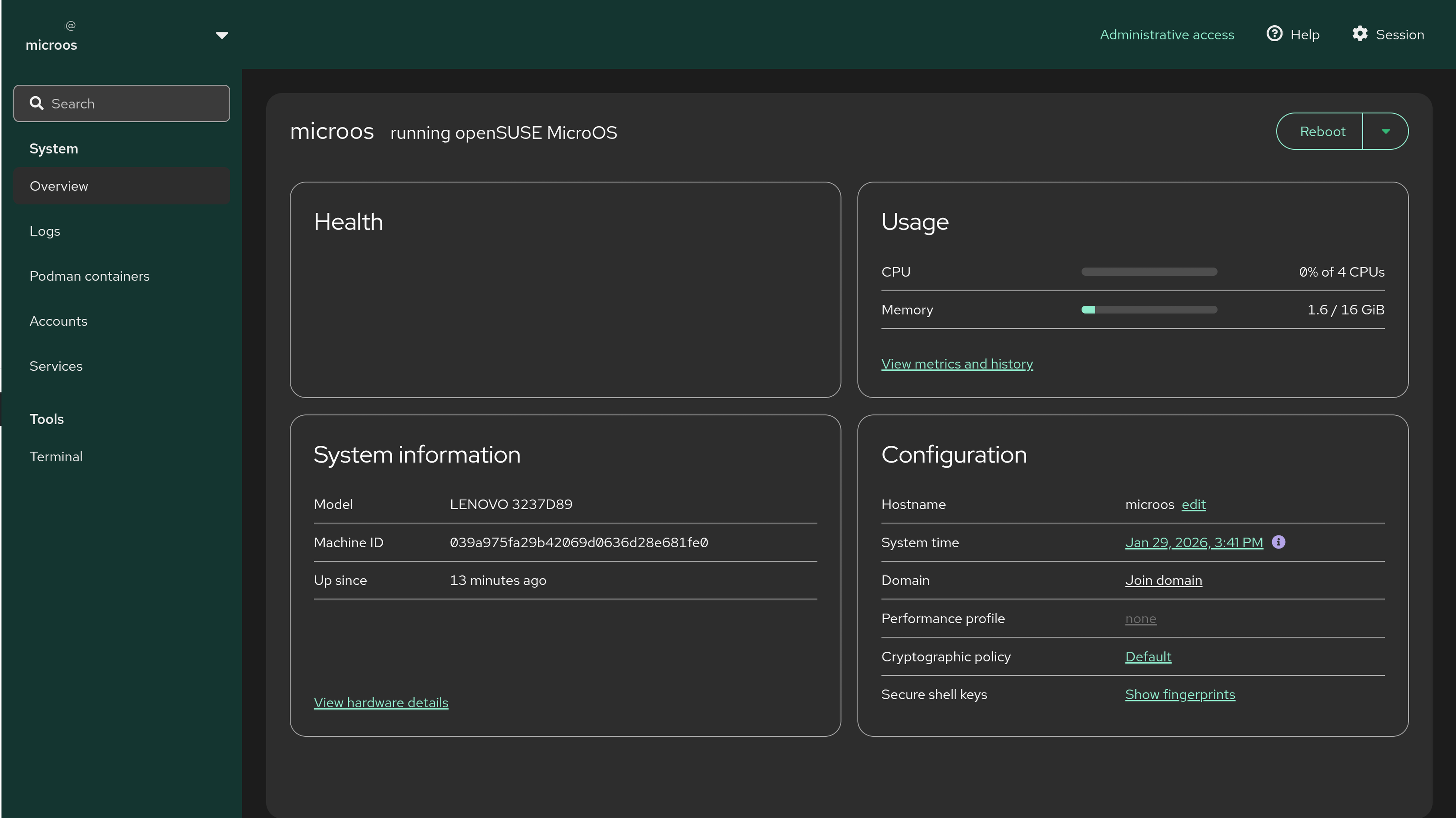
After the reboot, I connected via SSH to configure the system. I needed to open ports for Cockpit (9090) so I could access the web interface. Since this is a sensitive management port, I restricted it to my local network using a “rich rule.”
I also had to fix a quirk where sudo asks for the root password instead of the user’s password (a SUSE security default).
# Open Cockpit port (Restricted to LAN)
firewall-cmd --permanent --zone=public --add-rich-rule='rule family="ipv4" source address="192.168.0.0/24" service name="cockpit" accept'
firewall-cmd --reload
# Allow sudo with user password
echo 'Defaults !targetpw' | sudo tee /etc/sudoers.d/00_disable_targetpw
3. Deploying Services with Podman Quadlets
This is where MicroOS shines. Instead of a monolithic docker-compose.yml, I defined my services as Quadlets – systemd units that manage containers. This feels much more robust for a production environment than a simple compose file.
Networking
First, I defined a dedicated infrastructure network so my containers (like Backrest, NPM, Homepage, Warracker etc. etc.) could talk to each other.
In a highly segmented security model, you might create separate networks for each application stack (e.g., a “Database” network that is only accessible by the specific app using it, shielding it from other containers). However, for this node, I chose a pragmatic middle ground: a single, shared infrastructure network (infra.network).
Since Nginx Proxy Manager (NPM) effectively acts as the gateway for almost every web service I host, internally and externally, it needs to be able to talk to everything anyway. Creating a single internal bridge allows NPM to – for example – proxy requests to Backrest (or any future container) via their internal container names, avoiding the need to route traffic out to the LAN and back in (hairpinning). Simplicity won out here.
File: /etc/containers/systemd/infra.network
[Network]
Subnet=10.89.10.0/24
Nginx Proxy Manager (NPM) Setup
For standard applications like Nginx Proxy Manager, I want to follow security best practices. This means running the container as a non-root user.
First, I created a dedicated system user for my microservices.
groupadd -g 2000 microservices
useradd -u 2000 -g 2000 -s /sbin/nologin microservices
Then, I defined the Quadlet. Notice how I’m mapping the persistent data to /var/lib, which is writable on MicroOS.
File: /etc/containers/systemd/npm.container
[Unit]
Description=Nginx Proxy Manager
After=network-online.target local-fs.target
[Container]
Image=docker.io/jc21/nginx-proxy-manager:latest
Network=infra.network
# Expose Ports (Host:Container)
PublishPort=80:80
PublishPort=443:443
PublishPort=81:81
# Persistence
# Map Host Config (SSL Certs) to Container (Shared for Backup)
Volume=/var/lib/config/npm:/etc/letsencrypt:z
# Map Host Data (DB, config.json) to Container (Shared for Backup)
Volume=/var/lib/data/npm:/data:z
[Service]
Restart=always
[Install]
WantedBy=multi-user.target
Understanding the
:zFlag:
You’ll notice I use:z(lowercase) on the volume mounts. This is crucial for SELinux.
- :z (Shared): Tells SELinux that the volume content is shared and can be accessed by multiple containers. Since my Backup service also needs to read these files to back them up, this is the correct choice.
- :Z (Private): Would make the volume exclusive to this container alone, causing “Permission Denied” errors when the backup runs.
Don’t forget to open the firewall ports! For the Admin UI (81), I restrict access to my LAN.
# Public Web Ports
firewall-cmd --permanent --zone=public --add-port=80/tcp
firewall-cmd --permanent --zone=public --add-port=443/tcp
# Admin UI (Restricted to LAN)
firewall-cmd --permanent --zone=public --add-rich-rule='rule family="ipv4" source address="192.168.0.0/24" port port="81" protocol="tcp" accept'
firewall-cmd --reload
Backrest Setup
Next up was Backrest, which orchestrates my Restic backups. I’m a huge fan of Restic – I already use it for automated off-site backups on my LEMP server – so having a web UI for it via Backrest is a major quality-of-life improvement. However, here is where the “run as user” rule hit a snag.
Backrest needs to read data from other containers to back them up (like the NPM data we just set up). If I ran Backrest as the microservices user, it might struggle to read files owned by root or other UIDs without complex ACLs. To ensure reliable backups without permission errors, I decided to run this specific container as internal root.
File: /etc/containers/systemd/backrest.container
[Unit]
Description=Backrest Backup Service
After=network-online.target local-fs.target
OnFailure=email-alert@%n.service

[Container]
Image=docker.io/garethgeorge/backrest
Network=infra.network
PublishPort=9898:9898

# Persistence mappings
Volume=/var/mnt/NAS/Backups/restic/microos.local:/var/mnt/NAS/Backups/restic/microos.local
Volume=/var/lib/config/backrest:/config:z
Volume=/var/lib/data/backrest:/data:z

# Host backups (Read-Only)
Volume=/var/lib/config:/var/lib/config:ro,z
Volume=/var/lib/data:/var/lib/data:ro,z
Volume=/etc/containers/systemd:/etc/containers/systemd:ro,z
Volume=/etc/systemd/system:/etc/systemd/system:ro,z
Volume=/usr/local/bin:/usr/local/bin:ro,z
# Optional: Useful reference for network config on bare metal
#Volume=/etc/udev/rules.d/70-persistent-net.rules:/etc/udev/rules.d/70-persistent-net.rules:ro,z

[Service]
Restart=always

[Install]
WantedBy=multi-user.target
Auto-Updates
To keep things current, I enabled Podman’s auto-update timer.
systemctl enable --now podman-auto-update.timer
And added AutoUpdate=registry to my container definitions. Now, the system checks for image updates daily and restarts the services automatically.
4. Configuring Backrest: Speed, Retention & Notifications
With the Backrest container running, I accessed the Web UI (on port 9898) to set up the actual backup jobs.
Repository Optimization
When initializing the repository on my NFS share, I added a specific environment variable to the configuration:
TMPDIR=/dev/shm: This forces Restic to use the system’s RAM (shared memory) for temporary files instead of writing to the disk. This significantly reduces I/O latency during backup operations and reduces wear on the SSD.
The Backup Plan
I created a plan to backup not just my persistent data, but also the system configurations and infrastructure code we’ll create in the later steps.
Backup Scope:
/var/lib/data(Application data)/var/lib/config(Application configs)/etc/containers/systemd(Podman Quadlet definitions – I’ll create these later)/etc/systemd/system(Custom mount units and services, likepowersave-governor.service– I’ll create this later)/usr/local/bin(Custom automation scripts – I’ll create these later)/etc/udev/rules.d/70-persistent-net.rules(Optional: Useful reference for network config – I’ll create this later)
Note: Files like ‘powersave-governor.service’ (in /etc/systemd/system) and the udev rules do not exist on the VM yet. They are specific to the bare metal hardware.
I included them in the backup plan now (uncommented) for the sake of completeness, so they are automatically backed up once I migrate to the physical machine.
The Schedule: I configured this to run every hour. You might think that’s excessive, but because Restic uses deduplication and snapshots, it only transfers the changes since the last run. On a typical server, this takes mere seconds to complete. This ensures that even in a worst-case scenario, I never lose more than an hour of data.
Performance Flags: I tuned the backup job with specific flags to optimize for storage and speed:
--compression max: Maximizes space efficiency on my NAS.--pack-size 128: Increases the pack size (default is small). This reduces the total number of files on the backend, which helps with NFS performance.--cache-dir /dev/shm: Again, utilizing RAM for the local cache to speed up file scanning.--skip-if-unchanged: Skips files where metadata hasn’t changed, speeding up the scan phase.
Retention Policy: To keep storage usage in check, I apply a standard rotation:
- Last 24 hourly snapshots
- Last 7 daily
- Last 4 weekly
- Last 12 monthly
Notification Hooks
I wanted to be alerted immediately if a backup failed. Backrest supports hooks that run commands based on job status. I use a simple shell script to send emails via my Proxmox Mail Gateway (PMG), but you can adapt this to any SMTP server.
1. Create the Script: I placed this script at /var/lib/data/backrest/scripts/backrest_failure_email.sh. Because of our volume mapping, the container sees this at /data/scripts/backrest_failure_email.sh.
#!/bin/sh
# Send failure email via curl SMTP
# Usage: ./backrest_failure_email.sh "Error Summary"
# --- CONFIGURATION (Example) ---
# Replace these with your own details
SMTP_SERVER="smtp://192.168.0.107:26" # Example: Your PMG or SMTP server IP
FROM_EMAIL="[email protected]"
FROM_NAME="Backrest @ MicroOS"
TO_EMAIL="[email protected]"
SUBJECT="[Failure] BackRest Backup - MicroOS"
WEBUI_URL="[http://192.168.0.115:9898/](http://192.168.0.115:9898/)"
# ---------------------
ERROR_MSG="$1"
DATE=$(date -R)
cat <<MAIL | curl --silent --url "$SMTP_SERVER" --mail-from "$FROM_EMAIL" --mail-rcpt "$TO_EMAIL" --upload-file -
From: "$FROM_NAME" <$FROM_EMAIL>
To: $TO_EMAIL
Subject: $SUBJECT
Date: $DATE
Content-Type: text/plain; charset=utf-8
BackRest backup job encountered an error.
Error Summary:
--------------------------------------------------
$ERROR_MSG
--------------------------------------------------
Please check the BackRest WebUI for full logs:
$WEBUI_URL
MAIL
Don’t forget to make it executable: chmod +x /var/lib/data/backrest/scripts/backrest_failure_email.sh
2. Configure the Hook in Backrest: In the Backrest Web UI, under your Plan settings:
- Enabled: Checked
- Condition:
CONDITION_ANY_ERROR - Command:
/data/scripts/backrest_failure_email.sh "{{ .ShellEscape .Summary }}"

5. Systemd Email Alerts: Knowing When Things Break
Since all my containers are managed as systemd services, I can use the native OnFailure hook to get an email immediately if a container crashes or fails to start.
1. Create a Generic Email Script: This script (/usr/local/bin/systemd-email-alert.sh) accepts the failing service name as an argument and sends the last 20 lines of the log via your SMTP server.
#!/bin/sh
# Usage: ./systemd-email-alert.sh "service-name"
# --- CONFIGURATION (Example) ---
SMTP_SERVER="smtp://192.168.0.107:26"
FROM_EMAIL="[email protected]"
TO_EMAIL="[email protected]"
# ---------------------
SERVICE_NAME="$1"
HOSTNAME=$(hostname)
DATE=$(date -R)
STATUS=$(systemctl status "$SERVICE_NAME" -n 20)
cat <<MAIL | curl --silent --url "$SMTP_SERVER" --mail-from "$FROM_EMAIL" --mail-rcpt "$TO_EMAIL" --upload-file -
From: "MicroOS Alert" <$FROM_EMAIL>
To: $TO_EMAIL
Subject: [FAILED] $SERVICE_NAME on $HOSTNAME
Date: $DATE
Content-Type: text/plain; charset=utf-8
The systemd service '$SERVICE_NAME' has entered a failed state.
Hostname: $HOSTNAME
Time: $DATE
Last Status / Logs:
--------------------------------------------------
$STATUS
--------------------------------------------------
Please check the server manually.
MAIL
2. Create the “Alerter” Service Template: This systemd service file (/etc/systemd/system/[email protected]) acts as the trigger.
[Unit]
Description=Email Alert for %i
[Service]
Type=oneshot
ExecStart=/usr/local/bin/systemd-email-alert.sh %i
3. Hook it into your Services: Now, just add OnFailure=email-alert@%n.service to the [Unit] section of any .container file (you can find these in /etc/containers/systemd).
[Unit]
Description=Nginx Proxy Manager
After=network-online.target local-fs.target
OnFailure=email-alert@%n.service
I also added this to the Podman auto-update service using systemctl edit podman-auto-update.service, so I get notified if a nightly image pull fails!
6. Migration to Bare Metal (The Real Disaster Recovery Test)
After validating the OpenSUSE MicroOS setup on the Proxmox VM, it was time to execute the main goal: freeing up resources on my cluster. I migrated the entire setup to my Lenovo ThinkCentre M92p Tiny. It has 16GB of dedicated RAM, making it a robust, independent home for these services.
The Migration Process
1. Install: I performed the standard OpenSUSE MicroOS setup and installation on the Lenovo Tiny from a USB stick.
2. Basic Setup: I repeated the initial hardening steps from Section 1 & 2 (creating the user, disabling root SSH login, setting up keys, opening firewall ports for Cockpit) to get the base system ready.
3. Network Configuration: To ensure stability, I transitioned from DHCP to a static IP (192.168.0.209) and updated the hostname. I also renamed the network interfaces for clarity using udev rules.
# Set Hostname
hostnamectl set-hostname microos
# Rename Interfaces via udev
# IMPORTANT: Replace these fake MAC addresses (AA:BB...) with your actual hardware MACs!
echo 'SUBSYSTEM=="net", ACTION=="add", DRIVERS=="?*", ATTR{address}=="AA:BB:CC:DD:EE:01", NAME="nic0"' | sudo tee /etc/udev/rules.d/70-persistent-net.rules
echo 'SUBSYSTEM=="net", ACTION=="add", DRIVERS=="?*", ATTR{address}=="AA:BB:CC:DD:EE:02", NAME="nic1"' | sudo tee -a /etc/udev/rules.d/70-persistent-net.rules
echo 'SUBSYSTEM=="net", ACTION=="add", DRIVERS=="?*", ATTR{address}=="AA:BB:CC:DD:EE:03", NAME="wlan0"' | sudo tee -a /etc/udev/rules.d/70-persistent-net.rules
# Configure Static IP on nic1 (Active Interface)
nmcli con mod "nic1" ipv4.addresses 192.168.0.209/24 ipv4.gateway 192.168.0.1 ipv4.dns 192.168.0.1 ipv4.method manual
nmcli con up "nic1"
sync
4. Restore: This was the ultimate test of my disaster recovery plan. I used Restic to restore the configuration and data from the VM backup to the bare metal machine.
Disaster Recovery Strategy: The “Safe Restore”
Restoring a backup sounds simple, but on an immutable, SELinux-enabled OS like MicroOS, it is a minefield. I learned this the hard way.
The SELinux Trap: If you blindly restore files to /, Restic might apply the SELinux labels from the source system (the VM) to the destination system. If you overwrite critical directories like /var/lib/empty (used by SSH privilege separation) with the wrong label, your SSH daemon will refuse connections, locking you out of the system.
To avoid this, I developed a “Safe Restore” strategy using a temporary directory.
1. Persistently Mount the Backup Repo
First, I ensured the NAS was mounted via a systemd unit, so it survives reboots.
File: /etc/systemd/system/var-mnt-NAS-Backups.mount
[Unit]
Description=Persistent NFS Mount for Restic Repository
After=network-online.target
[Mount]
What=192.168.0.210:/Backups/restic/microos.local
Where=/var/mnt/NAS/Backups/restic/microos.local
Type=nfs
Options=nfsvers=3,defaults
[Install]
WantedBy=multi-user.target
Enable it with: systemctl enable --now var-mnt-NAS-Backups.mount
2. Selective Restore to Temporary Location
Instead of restoring directly to production paths, I restored everything to /var/tmp/restore. This allows me to inspect the files and move them into place without overwriting system metadata.
# Restore app data and configs to a temp folder
restic restore latest \
  --target /var/tmp/restore \
  --include /var/lib/data \
  --include /var/lib/config
# Restore Quadlet definitions
restic restore latest \
  --target /var/tmp/restore \
  --include /etc/containers/systemd
# Restore Systemd services and custom scripts
restic restore latest \
  --target /var/tmp/restore \
  --include /etc/systemd/system \
  --include /usr/local/bin
3. Moving Files and Fixing Labels
Now, I carefully copied the files to their final destinations and – most importantly – forced a reset of the SELinux labels.
# Copy application data
cp -a /var/tmp/restore/var/lib/data/* /var/lib/data/
cp -a /var/tmp/restore/var/lib/config/* /var/lib/config/

# Copy Quadlet files (only the files, not the directory structure)
cp /var/tmp/restore/etc/containers/systemd/*.container /etc/containers/systemd/
cp /var/tmp/restore/etc/containers/systemd/*.network /etc/containers/systemd/
cp /var/tmp/restore/etc/containers/systemd/*.mount /etc/containers/systemd/

# Copy all custom scripts
# Note: This includes the email alert script and any future maintenance scripts
cp -a /var/tmp/restore/usr/local/bin/* /usr/local/bin/

# Copy custom systemd services
# Note: We skip the NAS mount unit as we recreated it manually for the restore process.
# The following files might not exist in a VM backup but are critical for a Bare Metal -> Bare Metal restore.
# I've included them here (uncommented) for completeness of the Disaster Recovery plan.
cp /var/tmp/restore/etc/systemd/system/[email protected] /etc/systemd/system/
cp /var/tmp/restore/etc/systemd/system/powersave-governor.service /etc/systemd/system/

# Optional: Copy Network Configuration (Bare Metal to Bare Metal only)
# This file handles interface renaming (nic0, nic1).
# Change the MAC addresses if this is a restore on a different Bare Metal node!
#cp /var/tmp/restore/etc/udev/rules.d/70-persistent-net.rules /etc/udev/rules.d/

# CRITICAL: Fix SELinux Contexts
# This ensures the copied files have the correct labels for the new system
restorecon -Rv /var/lib/data /var/lib/config
restorecon -Rv /usr/local/bin
restorecon -v /etc/systemd/system/[email protected]
restorecon -v /etc/systemd/system/powersave-governor.service
restorecon -v /etc/udev/rules.d/70-persistent-net.rules
restorecon -v /etc/containers/systemd/*

# Cleanup
rm -rf /var/tmp/restore
sync
Only after this cleanup did I reload systemd to pick up the new containers.
systemctl daemon-reload
systemctl enable --now backrest npm
The “No Operating System Found” Scare
After the first update and reboot on the bare metal hardware, the BIOS yelled “No operating system found.” Panic mode? Not quite.
I realized I had rebooted the system too quickly after the update. The EFI variables in the NVRAM hadn’t fully persisted or synced before the restart, causing the BIOS to lose track of the bootloader.
I booted an Arch Linux live USB, chrooted in, and found that the BIOS had indeed lost the NVRAM boot entry. A quick efibootmgr command allowed me to manually re-register the bootloader.
efibootmgr --create --disk /dev/sda --part 2 --label "opensuse" --loader '\EFI\BOOT\bootx64.efi'
Final Power Tweaks
Since this is a 24/7 server, I wanted to optimize power consumption. I set up a systemd service to apply the powersave CPU governor 60 seconds after boot.
File: /etc/systemd/system/powersave-governor.service
[Unit]
Description=Set CPU Scaling Governor to powersave
After=multi-user.target
[Service]
Type=oneshot
ExecStartPre=/usr/sbin/modprobe cpufreq_powersave
ExecStart=/usr/bin/bash -c "sleep 60 && echo powersave | tee /sys/devices/system/cpu/cpu*/cpufreq/scaling_governor"
RemainAfterExit=yes
[Install]
WantedBy=multi-user.target
7. Maintenance Commands
Applying Quadlet Changes
When modifying a .container or .network file in /etc/containers/systemd, you must reload systemd and restart the service to apply changes.
sudo systemctl daemon-reload
sudo systemctl restart <service_name>
# Example:
sudo systemctl restart backrest
System Updates (MicroOS)
MicroOS uses transactional updates, meaning changes happen in a new snapshot.
sudo transactional-update pkg install <package>
# or for a full system update
sudo transactional-update up
Note on Rebooting: I deliberately do not automate the reboot process for OS updates. If an update goes wrong, I want to be physically present or have time to set up a KVM session (or monitor/keyboard) to troubleshoot. I prefer to schedule my maintenance windows when I have time to react, rather than waking up to a dead server.
# Reboot manually when ready
sudo reboot
8. Enhancing the Admin Experience: Cockpit Add-ons
While the base Cockpit install is great, MicroOS requires a specific set of add-ons to be truly useful, while others (like cockpit-packagekit) can actually break the immutable workflow.
After a bit of research and some trial and error, I found the “Goldilocks” list of add-ons that make managing this system a breeze:
cockpit-podman: (Already installed) The MVP. It lets you see your containers, images, and pod resources at a glance.cockpit-selinux: Highly Recommended. Since SELinux is active and enforcing on MicroOS, this tool is invaluable for troubleshooting access denials without having to parse raw audit logs in the terminal.cockpit-networkmanager: MicroOS uses NetworkManager by default. This GUI makes managing static IPs and bridges much friendlier than typing out longnmclicommands.cockpit-storaged: Essential for mounting external drives, formatting disks, or checking Btrfs filesystem health.cockpit-firewalld: A simple graphical interface for managing the ports we opened earlier.cockpit-kdump: Configuration for kernel crash dumps (useful for post-mortem analysis if the server crashes).cockpit-repos: Manages software repositories.cockpit-tukit: This is the magic piece for MicroOS. It provides a UI for the Transactional Update kit, allowing you to view, manage, and rollback snapshots easily.
Instead of installing these one by one, I found a shortcut: the Cockpit Pattern. OpenSUSE bundles these tools into a convenient pattern that installs everything you need in one go. One thing to keep in mind is that the pattern is context-aware—it smartly excludes plugins that don’t make sense for your specific system configuration, keeping the UI clean.
To check what’s included, you can run: zypper info --requires -t pattern cockpit
To install the full pattern (requires a reboot):
sudo transactional-update pkg install -t pattern cockpit
# Reboot when ready
sudo reboot

Final Thoughts
Moving to this OpenSUSE MicroOS setup has been a refreshing change. The immutable filesystem forces you to be disciplined about where you store data and how you configure services. Using Podman Quadlets feels much more “native” to Linux than a docker-compose file, integrating your containers directly into systemd’s dependency tree.
The migration from VM to bare metal proved that my backup strategy with Backrest is solid. I now have a dedicated, low-power, and highly stable container host where my services update themselves automatically, and my Proxmox node has plenty of breathing room again. Next up: migrating Nginx Proxy Manager fully!
Buy me a coffee 🙂
If you found this post helpful, informative, or if it saved or made you some money, consider buying me a coffee. Your support means a lot and motivates me to keep writing.
You can do so via bunq.me (bunq, iDeal, Bankcontact and Credit- or Debit cards) or PayPal (PayPal and Credit- or Debit cards). Thank you!
Disclaimer
The blog posts, guides, and scripts provided on this website are for informational and educational purposes only. They are provided “as is” and without any warranty of any kind, either express or implied, including, but not limited to, the implied warranties of merchantability, fitness for a particular purpose, or non-infringement.
By using the information or scripts from this blog, you agree that I am not liable for any direct, indirect, incidental, consequential, or any other damages or losses arising from the use of or inability to use the information, scripts, or instructions contained herein. You assume full responsibility for any and all risks associated with the use of this content.
The blog posts, guides, and pages may contain referral/affiliate links. If you make a purchase through these links, I may receive a commission at no additional cost to you.
This information 📚 will benefit 🌟 so many 💖 people who 🙏 are facing 💪 similar struggles right now
Really appreciate you taking time to create this valuable content for everyone
This is great, apart from the NPM scary acronym.