Estimated reading time: 24 minutes
Table of contents
- Get Rid of the Ad Bloat
- Part 1: The Foundation: Building the Proxy Server
- Part 2: Building the Wall and Choosing an Access Method
- Part 3: Connecting Your Devices
- Part 4: The Ultimate Convenience: An Automated Connection Script
- Part 5: Optional – Adding a Privacy Layer with AdGuard VPN
- Part 6: Optional – Creating a Hybrid VPN Gateway
- Part 7: The Final Touch: A “Set It and Forget It” Server
- Final Thoughts: A Promising Proof of Concept
Get Rid of the Ad Bloat
I’ve been a long-time user of the AdGuard ecosystem. For years, I’ve relied on their excellent browser extension and even replaced my Pi-hole with AdGuard Home. I understand that not everything can be free; after all, content creators and developers need to provide for their families, just like I do. However, the sheer volume of ads on many websites has become overwhelming. They make pages hard to navigate, interrupt reading, and can grind perfectly good hardware to a halt with ad bloat.

My setup was working, but not as well as I hoped. Some ads still slipped through the cracks, and I knew my filtering could be better. Then, I stumbled upon a promotion on StackSocial: a lifetime AdGuard family subscription for just under $16. It was an instant “why not?” moment. Surprisingly, the deal worked perfectly, even though I’m in the Netherlands. So, I installed the app on our phones, laptops, and tablets.
The initial setup was a chore, though. I had to configure each device individually. Consequently, I started thinking there had to be a other way. I wanted a centralized system where I could just point my devices to a proxy or gateway and manage everything in one place. That’s precisely what this blog post is about. It’s the story of how I built this setup. It’s the log of my proof-of-concept for a centralized stack that I’m now beginning to battle-test.
My Goal: A Centralized Full AdGuard Stack Setup
My objective quickly evolved beyond just a simple proxy. I realized I could create a true, all-in-one filtering and privacy powerhouse on a single, lightweight server. My ultimate goal was to build a complete, centralized AdGuard stack.

This means a three-layered approach to network protection:
- DNS-Level Blocking with AdGuard Home.
- Deep HTTPS Filtering with the AdGuard Proxy.
- A Privacy Shield with the AdGuard VPN.
While my personal goal was to combine all three into this complete stack, the beauty of this project is its modularity. You can follow this guide to set up only the proxy, or you can add the other layers as you see fit. The AdGuard Home and AdGuard VPN sections are entirely optional, but they create a truly comprehensive solution when combined.
Part 1: The Foundation: Building the Proxy Server
First things first, I needed a home for my new service. A minimal Debian container on my Proxmox server was the perfect candidate. It’s lightweight, stable, and easy to manage.
Why not Alpine Linux you might ask? Well, I’ve spend a lot of time in Alpine Linux for my LEMP server and my SSH Jump Box and a tiny bit on Debian during my last blog post: The Reproducible Fortress: Proxmox as Code with Terraform & Ansible. So I wanted to spend some more time in Debian 🙂
For anyone interested, there is a ready to go AdGuard Home Proxmox VE Helper-Script available to get you started (which I have actually been using, until now).
Step 1: Crafting the Debian Container
- Create the Container: In my Proxmox web UI, I created a new container using a recent Debian template. I gave it modest resources (512MB RAM, 1 CPU core, 8GB storage) and noted the VM ID (e.g., 101, 102, etc.) that Proxmox assigned.
- Set Network Configuration: In the container’s Network settings, I configured a static IP.
- IPv4: Static.
- IP Address: I assigned a static IP from my network (e.g.,
192.168.0.10/24). - Gateway: I set my router’s IP address (e.g.,
192.168.0.1). - DNS server: I set this to my primary filtered DNS resolver, such as my AdGuard Home instance (e.g.,
192.168.0.254). This will be changed later if you complete the optional Step 3.
- Enable TUN/TAP Support (Crucial for VPN): Before starting the container, I needed to give it permission to create the virtual network interface for the VPN. I performed this on the Proxmox host’s shell.After noting the
VMIDI just created (e.g.,101), I set it as a variable on the Proxmox host and then ran the commands. This makes the process a bit easier to copy and paste.
# Note your container's ID and set it as a variable
VMID=101 # <--- !!! REPLACE THIS WITH YOUR ACTUAL VM ID !!!

# Run the commands
echo 'lxc.cgroup2.devices.allow: c 10:200 rwm' >> /etc/pve/lxc/$VMID.conf
echo 'lxc.mount.entry: /dev/net/tun dev/net/tun none bind,create=file' >> /etc/pve/lxc/$VMID.conf
- Start the Container: Now, I started the container and opened its console. At this point, I was initially logged in as root.
Step 2: Creating a Secure User
I never operate directly as root. Therefore, my next step was to create a standard user account with sudo privileges for administrative tasks.
# First, install sudo
apt update && apt install sudo -y

# Then, create the new user (the system will prompt for a password)
NEWUSER='myuser'
adduser "${NEWUSER}"

# Finally, grant sudo privileges
echo "${NEWUSER} ALL=(ALL:ALL) ALL" | tee "/etc/sudoers.d/${NEWUSER}"
After running these commands, I logged out of the root session and logged back in as my new user. All subsequent commands were run securely with sudo.
Step 3: Installing Prerequisites
With the base system and a secure user ready, it was time for the main event. First, I updated my packages and installed a couple of essential tools needed for the installation.
# Update packages and install necessary tools
sudo apt update && sudo apt upgrade -y && sudo apt install curl python3 wget -y
Step 4: Optional Power-Up – Adding AdGuard Home
Before setting up the AdGuard proxy, I decided to make this container a true all-in-one filtering powerhouse by also installing AdGuard Home. This allows it to handle DNS-level blocking for my entire network, which is a great first line of defense. Since it’s running on the same machine, I can then have the container use itself for DNS resolution.
Creating a Dedicated User
For the same security reasons we’ll use for the proxy later, I wanted AdGuard Home to run under its own, unprivileged user. This is a crucial security step.
# Create a system user named 'adguardhome'
sudo useradd -r -m -s /bin/false adguardhome
Installing and Configuring the Service
First, I downloaded the latest release and extracted the archive right in my home directory.
cd ~
# Download the latest version of AdGuard Home
wget https://static.adguard.com/adguardhome/release/AdGuardHome_linux_amd64.tar.gz

# Unpack the archive
tar xvf AdGuardHome_linux_amd64.tar.gz
Next, I manually moved the extracted files to /opt/AdGuardHome, which is the standard, secure location for third-party applications. This ensures the installer hardcodes the correct path into its service file.
# Move the files to their proper home in /opt
sudo mv AdGuardHome /opt/AdGuardHome
With the files in the right place, I changed to that directory and then ran the installer.
# Change into the new directory and install the service
cd /opt/AdGuardHome
sudo ./AdGuardHome -s install
Fixing the Service User and Permissions
By default, the new service is set to run as root, which isn’t ideal for security. We need to modify the systemd service file to run as our adguardhome user.
# Modify the new service file to run as the 'adguardhome' user
sudo sed -i "s/\[Service\]/\[Service\]\nUser=adguardhome\nGroup=adguardhome/" /etc/systemd/system/AdGuardHome.service
After modifying the service file, I reloaded the systemd daemon so it would recognize our changes.
# Reload systemd to pick up the new user configuration
sudo systemctl daemon-reload
Finally, and this is critical, I had to fix the ownership of the installation directory. Because the installer ran as root, the configuration files were owned by root. If we don’t fix this, our adguardhome user won’t be able to read the config or write logs, and the service will fail to start.
# Set the correct ownership and permissions
sudo chown -R adguardhome:adguardhome /opt/AdGuardHome
sudo chmod -R 700 /opt/AdGuardHome
To ensure the service can bind to port 53 (DNS) without needing root privileges, I enabled setcap support on the binary (though running as a user often requires explicitly allowing binding to privileged ports, newer systemd versions or container setups sometimes handle this gracefully or require AmbientCapabilities if issues arise. In my testing on this Debian container, ensuring the user owned the files was the key fix).
With everything in place, I enabled and started the service.
sudo systemctl enable AdGuardHome
sudo systemctl start AdGuardHome
Initial Web Setup
With the service installed and running, I opened a web browser on my laptop and navigated to http://<MY-CONTAINER-IP>:3000 to access the setup wizard. Here, I followed the prompts to create my admin user and password. For the network settings, I accepted the defaults (Admin interface on port 80) for now.
Critical Step: Moving the Admin Port By default, AdGuard Home grabs port 80 for its web interface. However, I need to keep port 80 free for Nginx.
Why? If I decide to use the standard HTTP-01 challenge to get my SSL certificate (Method B, Option 1), Let’s Encrypt requires port 80 to be accessible to verify I own the domain. If AdGuard Home is blocking that port, the verification will fail. Therefore, I moved the AdGuard Home interface to port 3000 by editing the configuration file directly:
# 1. Stop the service so we can edit the config safely
sudo systemctl stop AdGuardHome

# 2. Change the binding port from 80 to 3000 using sed
sudo sed -i 's/address: 0.0.0.0:80/address: 0.0.0.0:3000/' /opt/AdGuardHome/AdGuardHome.yaml

# 3. Start the service again
sudo systemctl start AdGuardHome
Now, I logged into the dashboard at http://<MY-CONTAINER-IP>:3000. There, I configured the upstream DNS servers. You are absolutely correct that using DNS-over-HTTPS (DoH) is a significant upgrade for privacy and security. It encrypts your DNS queries so your ISP can’t easily see which websites you are visiting. Here are a few excellent DoH providers I recommend configuring in AdGuard Home:
https://dns.quad9.net/dns-queryhttps://dns.adguard-dns.com/dns-queryhttps://freedns.controld.com/x-hagezi-pro
Pointing the Container to Itself for DNS
Once AdGuard Home was up and running with the new DoH upstreams, I made one final change. I went back to the container’s Network settings in the Proxmox web UI and changed the DNS server to 127.0.0.1. This makes the container use its own local AdGuard Home instance for all its DNS lookups.
Using AdGuard Home for Your Entire Network
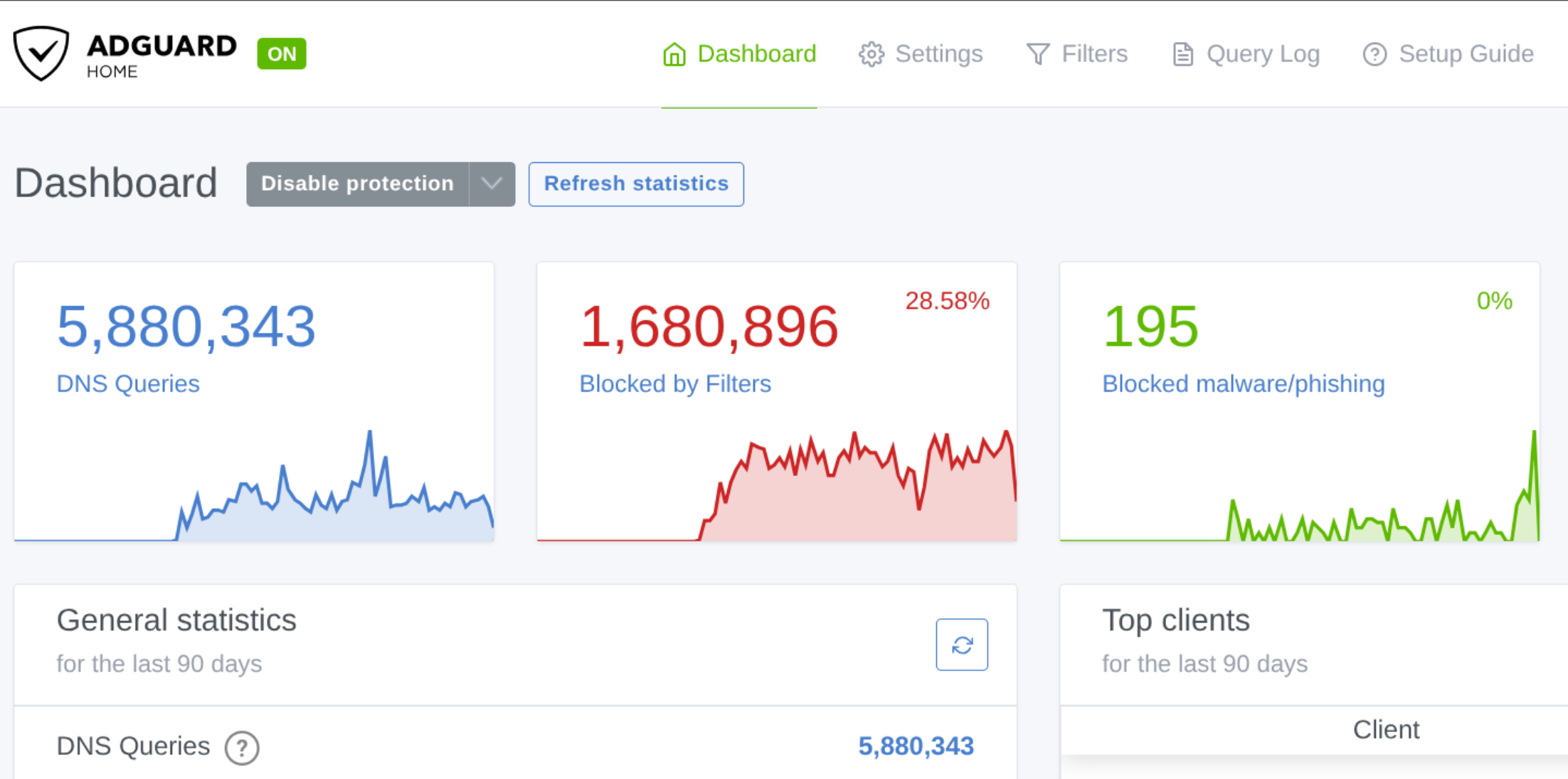
At this point, the container is more than just a future proxy server; it’s now a fully functional, network-wide DNS resolver. This means I could point any device on my network to the container’s IP address (192.168.0.10) for DNS and get instant ad-blocking.
The most common way to do this automatically is to log into my router and change the DNS server provided by its DHCP settings. By replacing my old DNS server with the container’s IP, every device that connects to my network will automatically start using AdGuard Home.
Alternatively, for even more granular control, AdGuard Home has its own built-in DHCP server. I could enable it and then disable the DHCP server on my router. This would make the AdGuard container the central authority for assigning IP addresses on my network, giving me detailed client-specific statistics and settings right from the AdGuard Home dashboard. For now, I’ve stuck with my router’s DHCP, but it’s a powerful option to have.
Step 5: Securing the Service with a Dedicated User
For better security, and for consistency with our AdGuard Home setup, I decided to run the AdGuard proxy service under its own dedicated user, which I’ll call adguardcli.
# Create a system user named 'adguardcli'
sudo useradd -r -m -s /bin/false adguardcli
Step 6: Installing and Configuring AdGuard Proxy
Now it was time to install the AdGuard proxy application. After our experience with the AdGuard Home installer, it’s safer and cleaner to run this from our user’s home directory, not from /opt/AdGuardHome.
# Change back to our home directory
cd ~

# Run the official AdGuard installation script
curl -fsSL https://raw.githubusercontent.com/AdguardTeam/AdGuardCLI/release/install.sh | sudo sh -s -- -v
The script asked if I wanted to create a symbolic link, and I pressed Y to confirm.
With the application installed, I then performed the initial activation and configuration as the dedicated adguardcli user. This ensures all its configuration files are owned by the correct user from the start.
# Activate AdGuard by logging into your account
sudo -u adguardcli -H adguard-cli activate

# Run the configuration wizard
sudo -u adguardcli -H adguard-cli configure
The wizard then walked me through a series of questions to get the proxy up and running. Here’s exactly how I answered them to get my desired setup:
- For the HTTP proxy listen port, I just pressed Enter to accept the default of
3129. - Similarly, for the SOCKS5 proxy listen port, I accepted the default of
1081. - Crucially, for the proxy listen address, I entered
0.0.0.0. This is a critical change that allows the proxy to accept connections from other devices on my network, not just from the container itself. - When prompted, I created a secure username and password to protect access to the proxy.
- I chose
manualfor the proxy server mode. - I opted not to send crash reports.
- For HTTPS filtering, I entered
yes. This is the key feature that allows AdGuard to block ads on secure websites. - I accepted the default name for the certificate,
AdGuard CLI CA. - I selected
nowhen asked to install the certificate on the system.A Quick Note on This Choice: I selected “no” because this is a small but important distinction. The container itself is the server providing the proxy; it doesn’t need to trust its own certificate. The clients (my laptop, phone, etc.) are the ones that need the certificate installed so they can trust the filtered traffic. Saying “yes” here would just add the certificate to the container’s own trust store, which is unnecessary system clutter. Since we’re going to export it for the clients anyway, I chose “no” to keep the server clean. - Finally, for the filter lists, I selected the Ad Blocking, Privacy, and Security lists before choosing FINISH.
Step 7: Making it Persistent with systemd
To ensure the AdGuard proxy starts automatically on boot, I created a systemd service file. This is the standard way to manage services on modern Linux systems.
# Create the systemd service file
sudo tee /etc/systemd/system/adguard-cli.service > /dev/null <<'EOF'
[Unit]
Description=AdGuard for Linux
After=network.target

[Service]
Type=simple
User=adguardcli
Group=adguardcli
WorkingDirectory=/home/adguardcli
ExecStart=/usr/local/bin/adguard-cli start --no-fork
ExecStop=/usr/local/bin/adguard-cli stop
Restart=always

[Install]
WantedBy=multi-user.target
EOF

# Reload systemd and enable the new service
sudo systemctl daemon-reload
sudo systemctl enable adguard-cli
Part 2: Building the Wall and Choosing an Access Method
With the service configured, the next step was to set up a firewall. I also had to decide how I wanted to access my new proxy: only from my local network or securely from anywhere in the world.
Step 1: Configuring the Firewall with nftables
I use nftables as my firewall. The ruleset is simple: by default, it drops all incoming traffic. Then, I specifically allow access to essential services. This includes SSH, the AdGuard proxy, and the AdGuard Home DNS server from my local network. I also opened ports 80 and 443 for the optional Nginx reverse proxy setup.
# Install nftables
sudo apt install nftables -y

# Create the firewall configuration
sudo tee /etc/nftables.conf > /dev/null <<'EOF'
#!/usr/sbin/nft -f
flush ruleset
table inet filter {
    chain input {
        type filter hook input priority 0; policy drop;
        ct state {established, related} accept;
        iifname "lo" accept;
        ip protocol icmp accept;
        ip6 nexthdr icmpv6 accept;
        # Allow SSH from my local network
        tcp dport 22 ip saddr 192.168.0.0/24 accept;
        # Allow AdGuard Home DNS from my local network
        tcp dport 53 ip saddr 192.168.0.0/24 accept;
        udp dport 53 ip saddr 192.168.0.0/24 accept;
        # Allow AdGuard Proxy from my local network
        tcp dport 3129 ip saddr 192.168.0.0/24 accept;
        # Allow temporary web server for cert export
        tcp dport 8080 ip saddr 192.168.0.0/24 accept;
        # Allow public access to Nginx (for Method B)
        tcp dport { 80, 443 } accept;
    }
}
EOF

# Start and enable the firewall service
sudo systemctl start nftables
sudo systemctl enable nftables
Step 2: Choosing Your Access Method
Here, I had a choice to make.
Method A: LAN-Only Access (The Simple Route & Recommended for iOS) This is the easiest and most direct method, and it’s what I recommend for most local network devices, especially for iOS. You simply need to start the AdGuard service. After running the command below, you can skip the entire Nginx/SSL section for Method B and proceed directly to Part 3: Connecting Your Devices.
sudo systemctl start adguard-cli
Method B: Secure Remote Access with Nginx This method is typically for secure access from outside my home, but it’s also a fantastic way to add an extra layer of security within your own network. Even if you don’t expose the port to the internet, wrapping the proxy connection in an encrypted SSL tunnel ensures that all your filtering traffic is secure on your LAN. However, to get the necessary SSL certificate for a server that isn’t publicly exposed, you must use a DNS verification method, for example with Cloudflare and Certbot. This method requires a registered domain name. It essentially exposes the proxy on the standard HTTPS port 443, and the setup involves installing Nginx and Certbot, obtaining a certificate, and configuring Nginx’s stream module to pass the traffic through.
Here is the detailed process for setting up the Nginx reverse proxy.
Prerequisites
First, you must have a registered domain name. Secondly, you need to decide which validation method you will use for your SSL certificate:
- HTTP-01 Challenge: Your domain’s DNS A record must point to the public IP address of your network/server.
- DNS-01 Challenge: Your domain’s DNS records must be managed by a provider that Certbot supports, like Cloudflare.
To make the following steps easier, I’ll set my domain name as a variable. Remember to replace myproxy.example.com with your actual domain.
MY_DOMAIN='myproxy.example.com'
Option 1: Using Nginx (HTTP-01 Challenge)
This option is simpler if your server is directly accessible from the internet on port 80.
- Install Nginx and Certbot:
sudo apt install nginx libnginx-mod-stream python3-certbot-nginx -y
- Obtain the SSL Certificate:
sudo certbot --nginx -d "${MY_DOMAIN}"
Option 2: Using Cloudflare (DNS-01 Challenge)
This is the method to use if your server is not exposed to the internet, as it verifies domain ownership via DNS.
- Install Nginx and the Certbot Cloudflare Plugin:
sudo apt install nginx libnginx-mod-stream python3-certbot-dns-cloudflare -y
- Create and Store a Cloudflare API Token: Log into your Cloudflare dashboard and create a new API token. It needs “Edit zone DNS” permissions for your domain. Then, create the credentials file on your server.
sudo tee "/etc/letsencrypt/cloudflare.ini" > /dev/null <<EOF
dns_cloudflare_api_token = YOUR_CLOUDFLARE_API_TOKEN
EOF
sudo chmod 600 /etc/letsencrypt/cloudflare.ini
- Obtain the SSL Certificate:
sudo certbot certonly --dns-cloudflare --dns-cloudflare-credentials /etc/letsencrypt/cloudflare.ini -d "${MY_DOMAIN}"
Final Nginx Configuration
After obtaining your certificate with either option, you need to configure Nginx to handle the proxy traffic.
- Add Stream Proxy to Main Nginx Config: Nginx requires the
streamblock to be at the main configuration level (outside thehttpblock). Instead of using complex editing tools, we can simply append our new configuration to the end of thenginx.conffile, which is a robust and simple way to handle it.
# Append the stream configuration to the end of nginx.conf
sudo tee -a /etc/nginx/nginx.conf > /dev/null <<EOF

stream {
    upstream backend_proxy { server 127.0.0.1:3129; }

    server {
        listen 443 ssl;
        listen [::]:443 ssl;

        ssl_certificate /etc/letsencrypt/live/${MY_DOMAIN}/fullchain.pem;
        ssl_certificate_key /etc/letsencrypt/live/${MY_DOMAIN}/privkey.pem;
        ssl_protocols TLSv1.2 TLSv1.3;

        proxy_pass backend_proxy;
        proxy_timeout 1h;
        proxy_connect_timeout 5s;
    }
}
EOF
- Configure the HTTP Redirect Site (Optional but Recommended): This small server block redirects any plain HTTP traffic to HTTPS.
sudo tee "/etc/nginx/sites-available/${MY_DOMAIN}" > /dev/null <<EOF
server {
    listen 80;
    listen [::]:80;
    server_name ${MY_DOMAIN};
    return 301 https://\$server_name\$request_uri;
}
EOF
- Enable, Test, and Reload Nginx:
sudo ln -s "/etc/nginx/sites-available/${MY_DOMAIN}" "/etc/nginx/sites-enabled/"
sudo nginx -t
sudo systemctl reload nginx
- Start the AdGuard Service: Finally, start the AdGuard service to begin filtering.
sudo systemctl start adguard-cli
Part 3: Connecting Your Devices
With the server running, the final piece of the puzzle was configuring my devices to use it. This involves two crucial steps: trusting the AdGuard root certificate and then pointing the device to the proxy.
Step 1: Locate and Export the AdGuard Root Certificate
Because AdGuard needs to decrypt and filter HTTPS traffic, my devices must trust its certificate authority. To get the certificate file, I started a temporary web server inside the container.
- Set the Certificate Directory Variable:
CERT_DIR='/home/adguardcli/.local/share/adguard-cli'
- Start a Temporary Web Server:
sudo python3 -m http.server 8080 --directory "$CERT_DIR" --bind 0.0.0.0
- Download the Certificate: On my client device (phone, laptop, etc.), I opened a web browser and navigated to
http://<MY-CONTAINER-IP>:8080/AdGuard%20CLI%20CA.pemto download the file.
Once the file was downloaded, I stopped the temporary web server in the container’s console by pressing Ctrl+C.
Step 2: Import the Certificate on Your Devices
The process for installing the certificate varies by operating system. Here are the specific steps for each platform.
- Windows: I double-clicked the
.pemfile and chose to install it to the “Local Machine” in the “Trusted Root Certification Authorities” store. - macOS: I opened the Keychain Access app, dragged the certificate file into the “System” keychain, and then double-clicked the certificate to set its trust level to “Always Trust”.
- Linux (Debian/Ubuntu):
sudo cp "/path/to/downloads/AdGuard CLI CA.pem" "/usr/local/share/ca-certificates/AdGuard-CLI-CA.crt"
sudo update-ca-certificates
- Linux (RHEL/CentOS/Fedora):
sudo cp "/path/to/downloads/AdGuard CLI CA.pem" "/etc/pki/ca-trust/source/anchors/AdGuard-CLI-CA.pem"
sudo update-ca-trust
- Linux (Arch):
sudo cp "/path/to/downloads/AdGuard CLI CA.pem" "/etc/ca-certificates/trust-source/anchors/AdGuard-CLI-CA.pem"
sudo update-ca-trust
- Linux (Firefox): Inside Firefox’s settings, I navigated to
Privacy & Security > Certificates > View Certificates, imported the.pemfile under the “Authorities” tab, and checked the box to trust it for identifying websites. - Android: I simply opened the downloaded
.pemfile from the file manager and followed the prompts to install it as a CA certificate. - iOS: This requires a few specific steps.
- Download with Safari: I had to use the Safari browser to download the
.pemfile. - Install Profile: Then, I went to
Settings, tapped the “Profile Downloaded” notification at the top, and followed the steps to install it. - Enable Full Trust: Crucially, I had to go to
Settings > General > About > Certificate Trust Settingsand toggle the switch ON for my “AdGuard CLI CA”.
- Download with Safari: I had to use the Safari browser to download the
Step 3: Configure Your Proxy Settings
With the certificate trusted, the final step was to tell my device or browser to use the proxy. I chose the manual proxy configuration option in my network or browser settings.
For iPhone/iOS (Specific Wi-Fi Network):
Based on my testing, the most reliable method for my iPhone is connecting directly to the HTTP Proxy on port 3129 when I’m on my local Wi-Fi.
- In
Settings > Wi-Fi, I tapped the ‘i’ icon next to my network. - I scrolled down to
Configure Proxyand selectedManual. - Server: I entered my container’s IP (e.g.,
192.168.0.10). - Port:
3129. - I enabled Authentication and entered the username and password I created earlier.
A useful tip: if the authentication prompt doesn’t appear, using “Forget This Network” and reconnecting will usually force it to show up.
An Alternative: Connecting via an SSH Jump Host
For secure remote access without the full Nginx setup, I can use my SSH jump host. This creates a secure, encrypted tunnel from my client machine directly to the AdGuard proxy container.
Step 1: The Prerequisite (for Method B)
For this to work seamlessly with Method B’s SSL setup, I first needed to edit the hosts file on my client machine (/etc/hosts on Linux/macOS, C:\Windows\System32\drivers\etc\hosts on Windows) and add the following line. This tells my computer that myproxy.example.com points to my local machine.
127.0.0.1 myproxy.example.com
Step 2: Establish the SSH Tunnel
Next, I opened a terminal on my client and ran one of the following commands to create the tunnel.
- For Secure Remote Access (Method B):
sudo ssh -N -L 9443:192.168.0.10:443 [email protected] -p 123456
- For LAN-Only Access (Method A):
ssh -N -L 3129:192.168.0.10:3129 [email protected] -p 123456
Step 3: Configure Your Browser
With the tunnel active, I configured my browser’s proxy settings. We’ll use port 9443 because that is the local end of our SSH tunnel.
- For Secure Remote Access (Method B): I set the proxy to
myproxy.example.comon port9443. - For LAN-Only Access (Method A): I set the proxy to
localhoston port3129.
Step 4: Keep the Tunnel Active
Finally, I just needed to keep the terminal window where I ran the SSH command open. As long as it’s running, the tunnel remains active.
Part 4: The Ultimate Convenience: An Automated Connection Script
With the AdGuard proxy setup successfully built, manually starting and stopping the SSH tunnel when I moved between networks felt like a chore. Consequently, I wanted to take it a step further with full automation. This section details the script I wrote to automatically manage the SSH tunnel, making the entire process seamless.
Step 1: Client-Side Prerequisite: The /etc/hosts File
First, it’s important to remember that this automation script relies on the hosts file modification from the previous section. My client machine needs that entry to resolve my domain to localhost for the secure tunnel to work correctly.
Step 2: Install Dependencies on Your Client Machine
The script uses a few common command-line tools to check network status and manage the connection. I made sure these were installed on my client machine first.
- For Arch Linux:
sudo pacman -S openssh socat openbsd-netcat
- For Debian/Ubuntu:
sudo apt install openssh-client socat netcat
Step 3: Create the Automation Script
Next, I created the script itself. This script is smart; it first checks if a direct connection to the proxy is available on the LAN. If it is, it does nothing. If not, it automatically establishes the SSH tunnel through my jump host.
- Create the local bin directory if it doesn’t exist:
mkdir -p ~/.local/bin
- Create the script file: I created the script at
~/.local/bin/proxy-tunnel.sh. Notice that the remotePROXY_PORTis set to443, but theLOCAL_PORTis set to9443. This is deliberate, as it allows the script to bind to the local port without needing root privileges.
tee ~/.local/bin/proxy-tunnel.sh > /dev/null <<'EOF'
#!/usr/bin/env bash
# AdGuard Proxy Tunnel Manager
set -o errexit -o nounset -o pipefail

# --- User Configuration ---
# IP of the AdGuard Proxy on your LAN
readonly PROXY_IP="192.168.0.10"
# The public-facing Nginx port on the AdGuard proxy
readonly PROXY_PORT="443"
# SSH Jump Host details
readonly JUMP_HOST_IP="1.2.3.4"
readonly JUMP_HOST_PORT="123456"
readonly JUMP_HOST_USER="your_ssh_user"
# Local port for the proxy (use a high port to avoid needing sudo)
readonly LOCAL_PORT="9443"
readonly PID_FILE="/tmp/proxy-tunnel.pid"

# --- Script ---
readonly GREEN=$(tput setaf 2); readonly RED=$(tput setaf 1); readonly YELLOW=$(tput setaf 3); readonly NORMAL=$(tput sgr0)
is_process_running() { if [ -f "$PID_FILE" ]; then local pid; pid=$(cat "$PID_FILE"); if ps -p "$pid" > /dev/null; then return 0; else log_warning "Stale PID file found. Cleaning up."; rm "$PID_FILE"; return 1; fi; fi; return 1; }
log_success() { printf "${GREEN}%s${NORMAL}\n" "$1"; }
log_error() { printf "${RED}%s${NORMAL}\n" "$1" >&2; }
log_warning() { printf "${YELLOW}%s${NORMAL}\n" "$1"; }
start_process() { if is_process_running; then log_warning "Connection is already active with PID $(cat "$PID_FILE")."; exit 1; fi; log_warning "Checking for direct connection to proxy at ${PROXY_IP}:${PROXY_PORT}..."; local process_pid=""; if nc -z -w 3 "$PROXY_IP" "$PROXY_PORT" 2>/dev/null; then log_warning "Direct LAN connection available. No tunnel needed."; exit 0; else log_warning "No direct connection. Starting SSH tunnel via jump host..."; ssh -N -L "${LOCAL_PORT}:${PROXY_IP}:${PROXY_PORT}" "${JUMP_HOST_USER}@${JUMP_HOST_IP}" -p "${JUMP_HOST_PORT}" & process_pid=$!; fi; sleep 0.5; if ps -p "$process_pid" > /dev/null; then echo "$process_pid" > "$PID_FILE"; log_success "Connection started successfully with PID ${process_pid}."; else log_error "Failed to start connection. Check connectivity and logs."; exit 1; fi; }
stop_process() { if is_process_running; then local pid; pid=$(cat "$PID_FILE"); log_warning "Stopping connection (PID ${pid})."; kill "$pid"; rm "$PID_FILE"; log_success "Connection stopped."; else log_error "Connection is not active."; fi; }
for cmd in ssh nc socat tput; do if ! command -v "$cmd" &>/dev/null; then log_error "FATAL: Required command '${cmd}' is not installed or not in PATH."; exit 1; fi; done
if [ -z "${1:-}" ]; then log_error "Usage: $0 {start|stop|restart|status}"; exit 1; fi
case "$1" in start) start_process ;; stop) stop_process ;; restart) log_warning "Restarting connection..."; (stop_process) || true; sleep 1; start_process ;; status) if is_process_running; then local pid; pid=$(cat "$PID_FILE"); local process_name; process_name=$(ps -p "$pid" -o comm=); log_success "Connection is active via ${process_name} with PID ${pid}."; else log_error "Connection is stopped."; fi ;; *) log_error "Usage: $0 {start|stop|restart|status}"; exit 1 ;; esac
exit 0
EOF
- Make it executable:
chmod +x ~/.local/bin/proxy-tunnel.sh
Step 4: Create the systemd User Service
To make this script run automatically, I created a systemd user service. This service will manage the script, starting it when I log in and restarting it if it ever fails.
# Create the directory if it doesn't exist
mkdir -p ~/.config/systemd/user/

# Create the service file
tee ~/.config/systemd/user/proxy-tunnel.service > /dev/null <<'EOF'
[Unit]
Description=Auto Proxy Tunnel for AdGuard
After=network-online.target

[Service]
ExecStart=%h/.local/bin/proxy-tunnel.sh start
ExecStop=%h/.local/bin/proxy-tunnel.sh stop
Restart=always
RestartSec=10

[Install]
WantedBy=default.target
EOF
Step 5: Enable and Start the Service
Finally, I enabled the service to ensure it starts on login and then started it for the current session.
systemctl --user daemon-reload
systemctl --user enable proxy-tunnel.service
systemctl --user start proxy-tunnel.service
Step 6: Final Browser Configuration
With the service running, the last step was to set my browser’s proxy to myproxy.example.com on port 9443 and leave it. The script and service now handle all the connection logic automatically in the background, connecting to the local end of the tunnel.
As an alternative, you can also launch a browser instance that uses the proxy with a simple command-line flag. I added >/dev/null 2>&1 & to the end of the command to suppress the noisy terminal output (like benign DBus or wallet errors) and run the browser in the background.
Note: When the browser opens and tries to connect, it will prompt you for a username and password. Enter the secure credentials you created back in Part 1, Step 6. You can choose to save these credentials in the browser so you don’t have to type them in every time.
chromium --proxy-server="https://myproxy.example.com:9443" --new-window >/dev/null 2>&1 &
Part 5: Optional – Adding a Privacy Layer with AdGuard VPN
With the proxy running perfectly, I decided to add another layer to my setup: privacy. However, I’m still in the market for a long-term VPN. I tested this setup with the free AdGuard VPN, which works great. Coincidentally, it’s also on sale on StackSocial for only $49.99 for a five-year subscription (this is almost sounding like an ad 😂). On the other hand, there’s also a lifetime subscription for FastestVPN available right now for only $29.99. It leaves me wondering… what to choose, and do I really need it? 🤔
For now, adding the AdGuard VPN CLI to the same container is a great way to route all its outbound traffic through a secure, encrypted VPN tunnel. What’s particularly useful is that even with the free 3GB monthly data cap, the combination of AdGuard Home and the VPN is already a powerful privacy tool. The traffic from AdGuard Home’s encrypted DNS-over-HTTPS requests will go over the VPN. This enhances your privacy by hiding your DNS activity from your ISP. Since DNS requests use very little data, the free 3GB is more than sufficient for this purpose alone. However, if you also plan to route the proxy traffic or use the container as a full gateway, the 3GB limit will likely not be enough.
Step 1: Install AdGuard VPN CLI
First, I installed the necessary packages and then ran the official installation script.
sudo apt install gpg -y
curl -fsSL https://raw.githubusercontent.com/AdguardTeam/AdGuardVPNCLI/master/scripts/release/install.sh | sudo sh -s -- -v
Step 2: Login and Activate
Next, I logged into my AdGuard account to activate the VPN service.
sudo adguardvpn-cli login
Step 3: Configure and Test the Connection
Before creating the automated service, I needed to run the connection command manually once. This is critical because the first time you connect, the CLI asks interactive questions (like “Would you like to set default routes?”). If we skip this, the background service will hang waiting for an answer and fail.
I listed the locations, picked one (like NL), and established the initial connection.
# List available locations
sudo adguardvpn-cli list-locations

# Connect manually to answer the initial setup questions
sudo adguardvpn-cli connect -l NL
- Set default routes in TUN mode? I answered yes.
- Allow AdGuard VPN to set system DNS? I answered no (since we are managing DNS ourselves with AdGuard Home).
- Collect crash reports? I answered no.
Verifying the Tunnel
Once connected, I needed to verify that my traffic – both IPv4 and IPv6 – was actually routing through the VPN. I used curl with specific flags to check my public IP addresses.
# Check IPv4 address
curl -4 https://ifconfig.co

# Check IPv6 address
curl -6 https://ifconfig.co
I saw that both IP addresses had changed from my home provider’s range to the VPN’s range. This confirmed that the VPN tunnel was handling all traffic correctly and I wasn’t leaking data over IPv6.
I also verified that the TUN device was accessible and had the correct permissions, ensuring systemd wouldn’t hit a permission error later.
ls -l /dev/net/tun
I saw crw-rw-rw-, which confirmed the device was accessible.
Step 4: Create and Enable the VPN Service
Now that the configuration is saved and verified, I created a systemd service to make the connection persistent. I included the Environment="HOME=/root" line to ensure the service knows exactly where to look for the credentials I just saved.
sudo tee /etc/systemd/system/adguard-vpn.service > /dev/null << 'EOF'
[Unit]
Description=AdGuard VPN Service
After=network-online.target

[Service]
Type=oneshot
RemainAfterExit=yes
Environment="HOME=/root"
ExecStart=/usr/local/bin/adguardvpn-cli connect -l NL
ExecStop=/usr/local/bin/adguardvpn-cli disconnect

[Install]
WantedBy=multi-user.target
EOF

# Reload systemd and enable the new service
sudo systemctl daemon-reload
sudo systemctl enable --now adguard-vpn.service
Part 6: Optional – Creating a Hybrid VPN Gateway
This is where the potential of the setup gets really exciting. By making a few changes, I could turn the container into a full network gateway. This setup offers the “best of both worlds”: my browser traffic gets filtered for ads, and all traffic from any client device I configure is forced through the AdGuard VPN for privacy.
However, my extensive testing confirmed that achieving a fully transparent proxy setup isn’t compatible with the adguardvpn-cli tool. The auto mode of the AdGuard proxy unfortunately creates a routing loop with the VPN’s tunnel mode, and the alternative SOCKS5 mode for the VPN doesn’t correctly route all system traffic for a gateway.
It might be possible to achieve a transparent setup by connecting the container using AdGuard VPN with IPsec/IKEv2; however, as this isn’t available in the free tier, I haven’t tested this yet.
Therefore, the hybrid solution I’m detailing here is the proven approach. We will still need to use the manual proxy settings in the browser to get ad-blocking, but all network traffic from the client device will be automatically routed through the VPN gateway.
Step 1: Enable IP Forwarding
First, I needed to allow the container to act as a router and forward traffic from other devices on my network.
echo "net.ipv4.ip_forward=1" | sudo tee /etc/sysctl.d/99-ip-forward.conf
sudo sysctl -p /etc/sysctl.d/99-ip-forward.conf
Step 2: Update Firewall for Network Address Translation (NAT)
Next, I needed to update my nftables configuration to handle Network Address Translation (NAT). This is a crucial step that uses masquerade to make the traffic from my client devices look like it originated from the container itself before sending it out over the VPN. Instead of opening the file in a text editor, I can append the configuration directly. In keeping with the rest of the guide, I used a simple tee command with the --append flag. This cleanly adds the necessary nat table to the end of my existing firewall rules.
sudo tee -a /etc/nftables.conf > /dev/null <<'EOF'

table ip nat {
    chain postrouting {
        type nat hook postrouting priority 100; policy accept;
        # Apply NAT to all outgoing traffic
        masquerade
    }
}
EOF
Then, a quick restart of the firewall applies the new ruleset:
sudo systemctl restart nftables
Step 3: Configure Your Client Device
On any device I wanted to route through this new gateway, I made two simple changes in its network settings:
- I changed the Default Gateway (sometimes called “Router”) to the IP address of my container (e.g.,
192.168.0.10). - I kept the manual proxy settings in my browser exactly as they were (pointing to my domain on port
443, or the IP on3129).
With this setup, browser traffic is filtered for ads, and all other application traffic from that device is also sent securely through the VPN.
Part 7: The Final Touch: A “Set It and Forget It” Server
A truly great server is one you don’t have to constantly babysit. The final goal of this project was to automate all the routine maintenance, making the server self-sufficient.
Step 1: Automating AdGuard Application Updates
First, I created systemd timers to automatically check for and install updates for both the AdGuard proxy and the VPN applications. To preserve my free VPN data allowance, I wrote these scripts to stop the VPN before checking for updates and restart it immediately after.
- Create the AdGuard CLI Update Script: This script checks daily for a new version of the proxy application.
sudo tee /usr/local/bin/adguard-cli-update.sh > /dev/null <<'EOF'
#!/bin/bash
set -euo pipefail
exec 1> >(systemd-cat -t adguard-cli-update)
exec 2> >(systemd-cat -t adguard-cli-update -p err)

VPN_SERVICE="adguard-vpn.service"

# Function to ensure VPN is restarted even if script fails
cleanup() {
    echo "Restoring VPN connection..."
    systemctl start "$VPN_SERVICE" || true
}
trap cleanup EXIT

echo "Stopping VPN to save data during update check..."
systemctl stop "$VPN_SERVICE"

echo "Starting AdGuard CLI update check..."
if /usr/local/bin/adguard-cli check-update | grep -q "Update available"; then
  echo "Update found for AdGuard CLI. Starting the update process..."
  if /usr/local/bin/adguard-cli update; then
    echo "Update successful. Restarting adguard-cli service."
    /bin/systemctl restart adguard-cli.service
  else
    echo "Update command failed for AdGuard CLI."
  fi
else
  echo "No new update available for AdGuard CLI."
fi
EOF
sudo chmod +x /usr/local/bin/adguard-cli-update.sh
- Create the AdGuard VPN Update Script: Similarly, this script handles updates for the VPN application itself.
sudo tee /usr/local/bin/adguard-vpn-update.sh > /dev/null <<'EOF'
#!/bin/bash
set -euo pipefail
exec 1> >(systemd-cat -t adguard-vpn-update)
exec 2> >(systemd-cat -t adguard-vpn-update -p err)

VPN_SERVICE="adguard-vpn.service"

cleanup() {
    echo "Restoring VPN connection..."
    systemctl start "$VPN_SERVICE" || true
}
trap cleanup EXIT

echo "Stopping VPN to save data during update check..."
systemctl stop "$VPN_SERVICE"

echo "Starting AdGuard VPN CLI update check..."
if /usr/local/bin/adguardvpn-cli check-update | grep -q "Update available"; then
  echo "Update found for AdGuard VPN. Starting the update process..."
  if /usr/local/bin/adguardvpn-cli update; then
    echo "Update successful. Restarting adguard-vpn service."
    /bin/systemctl restart adguard-vpn.service
  else
    echo "Update command failed for AdGuard VPN."
  fi
else
  echo "No new update available for AdGuard VPN."
fi
EOF
sudo chmod +x /usr/local/bin/adguard-vpn-update.sh
- Create and Enable the Timers: I created two timer files to run these scripts daily at a random time.
# Timer for AdGuard CLI
sudo tee /etc/systemd/system/adguard-cli-update.timer > /dev/null <<'EOF'
[Unit]
Description=Run AdGuard CLI update check daily
[Timer]
OnCalendar=daily
RandomizedDelaySec=6h
Persistent=true
[Install]
WantedBy=timers.target
EOF
sudo tee /etc/systemd/system/adguard-cli-update.service > /dev/null <<'EOF'
[Unit]
Description=Daily AdGuard CLI Update Check
[Service]
Type=oneshot
ExecStart=/usr/local/bin/adguard-cli-update.sh
EOF

# Timer for AdGuard VPN
sudo tee /etc/systemd/system/adguard-vpn-update.timer > /dev/null <<'EOF'
[Unit]
Description=Run AdGuard VPN CLI update check daily
[Timer]
OnCalendar=daily
RandomizedDelaySec=7h
Persistent=true
[Install]
WantedBy=timers.target
EOF
sudo tee /etc/systemd/system/adguard-vpn-update.service > /dev/null <<'EOF'
[Unit]
Description=Daily AdGuard VPN CLI Update Check
[Service]
Type=oneshot
ExecStart=/usr/local/bin/adguard-vpn-update.sh
EOF

# Reload systemd and start the timers
sudo systemctl daemon-reload
sudo systemctl enable --now adguard-cli-update.timer adguard-vpn-update.timer
Step 2: Automating Debian System Updates
For the operating system itself, I initially considered using the standard unattended-upgrades package. However, to ensure I wasn’t wasting VPN data on large Debian updates, I decided to write a custom script. This gives me explicit control to stop the VPN before the apt upgrade runs and start it again immediately after.
- Create the System Update Script:
sudo tee /usr/local/bin/system-update.sh > /dev/null <<'EOF'
#!/bin/bash
set -euo pipefail
exec 1> >(systemd-cat -t system-update)
exec 2> >(systemd-cat -t system-update -p err)

VPN_SERVICE="adguard-vpn.service"

cleanup() {
    echo "Update complete. Restoring VPN connection..."
    systemctl start "$VPN_SERVICE" || true
}
trap cleanup EXIT

echo "Stopping VPN to save data during system update..."
systemctl stop "$VPN_SERVICE"

echo "Starting APT update and upgrade..."
# Update package lists and perform upgrade without user interaction
export DEBIAN_FRONTEND=noninteractive
apt-get update
apt-get dist-upgrade -y
apt-get autoremove -y
apt-get autoclean
echo "System update finished successfully."
EOF
sudo chmod +x /usr/local/bin/system-update.sh
- Create the Timer and Service:
# Create the service definition
sudo tee /etc/systemd/system/system-update.service > /dev/null <<'EOF'
[Unit]
Description=Daily System Update (VPN disabled)
[Service]
Type=oneshot
ExecStart=/usr/local/bin/system-update.sh
EOF

# Create the timer definition
sudo tee /etc/systemd/system/system-update.timer > /dev/null <<'EOF'
[Unit]
Description=Run system updates daily
[Timer]
OnCalendar=daily
RandomizedDelaySec=4h
Persistent=true
[Install]
WantedBy=timers.target
EOF

# Enable and start the timer
sudo systemctl daemon-reload
sudo systemctl enable --now system-update.timer
Step 3: Automating SSL Renewals with a VPN
Finally, I had to solve one last puzzle. If I’m using the Cloudflare DNS challenge for my SSL certificate, the renewal process needs to contact the Cloudflare API from my home’s public IP, not the VPN’s IP. To solve this, I created a wrapper script. This script temporarily stops the VPN, runs the Certbot renewal, and then reliably restarts the VPN, ensuring my certificates never expire.
- Create the Renewal Wrapper Script:
sudo tee /usr/local/bin/certbot-renewal-wrapper.sh > /dev/null <<'EOF'
#!/bin/bash
set -euo pipefail
VPN_SERVICE="adguard-vpn.service"

cleanup() {
    echo "Ensuring VPN service is restarted..."
    sudo systemctl start "$VPN_SERVICE" || true
}
trap cleanup EXIT

echo "Temporarily stopping VPN service for Certbot renewal..."
sudo systemctl stop "$VPN_SERVICE"
echo "VPN service stopped. Waiting 5 seconds..."
sleep 5

echo "Running Certbot renewal with arguments: $@"
sudo certbot renew "$@"
echo "Certbot renewal finished."
EOF
sudo chmod +x /usr/local/bin/certbot-renewal-wrapper.sh
- Override the Default Certbot Renewal Command: I told
systemdto use my new wrapper script instead of the defaultcertbot renewcommand.
sudo systemctl edit certbot.service
I then pasted the following into the editor, saved, and exited:
[Service]
ExecStart=
ExecStart=/usr/local/bin/certbot-renewal-wrapper.sh
- Perform a Dry Run: To verify everything was working, I simulated a renewal.
sudo /usr/local/bin/certbot-renewal-wrapper.sh --dry-run
Seeing the “Congratulations, all renewals succeeded” message confirmed the automated renewal process was correctly set up.
Final Thoughts: A Promising Proof of Concept
This project was fun to build, learned something about the AdGuard Linux services and now I have a single, ultra-lightweight container running a full AdGuard stack, which serves as a powerful proof of concept. The initial results are very positive: the browsing experience is cleaner, and the modular design with AdGuard Home, the CLI proxy, and the (optional) VPN gateway gives me a huge amount of control.
However, the “set-it-and-forget-it” status isn’t quite earned yet. The next, and most critical, phase is to truly battle-test this setup. My plan is to route all my family’s daily-driver devices through this container – phones, laptops, everything. This real-world load will be the true test of its long-term stability. I’ll be watching to see how the automation scripts for updates and certificate renewals hold up over the coming weeks and if the hybrid gateway setup causes any unexpected bottlenecks.
For now, I’m happy with the build, however, I’m looking in to VPN alternatives, because I want a transparent proxy, that is the ultimate goal, if I really need a VPN for privacy or other reasons. It’s a powerful and flexible filtering stack, and I’m looking forward to seeing how it performs under pressure.
Buy me a coffee 🙂
If you found this post helpful, informative, or if it saved or made you some money, consider buying me a coffee. Your support means a lot and motivates me to keep writing.
You can do so via bunq.me (bunq, iDeal, Bankcontact and Credit- or Debit cards) or PayPal (PayPal and Credit- or Debit cards). Thank you!
Disclaimer
The blog posts, guides, and scripts provided on this website are for informational and educational purposes only. They are provided “as is” and without any warranty of any kind, either express or implied, including, but not limited to, the implied warranties of merchantability, fitness for a particular purpose, or non-infringement.
By using the information or scripts from this blog, you agree that I am not liable for any direct, indirect, incidental, consequential, or any other damages or losses arising from the use of or inability to use the information, scripts, or instructions contained herein. You assume full responsibility for any and all risks associated with the use of this content.
The blog posts, guides, and pages may contain referral/affiliate links. If you make a purchase through these links, I may receive a commission at no additional cost to you.